Print a web page to PDF on a Mac, and your name goes with it
A blood test result is exactly the kind of document people now hand to an AI assistant to have explained in plain English. It's also exactly the kind of document you'd rather not leave sitting on someone else's server under your own name, so the careful move is to black out the personal details before you upload anything.
Blacking out the page isn't enough. If you made that PDF on a Mac, your name is in a second place: a hidden field the print dialog filled in for you when you saved it.
First, the odd way Macs make PDFs
There's no "save this as a PDF" button in Safari. To get a PDF of a page you go through the printer: File › Print (⌘P), then click the PDF popup tucked into the bottom-left corner of the print window, and choose Save as PDF… from the menu that drops down.

It's an odd route to a file you never meant to print, and it's the route that puts your name in.
What's actually in the file
Every PDF carries a short list of hidden document properties: a title, the software that made it, the date it was written, and an author. Most of the time they're harmless housekeeping. But save a page this way and macOS fills the author in for you, using the name on your user account.
The quickest way to see that list is to open the PDF in Scrub and tap Metadata. Here's a PDF with its properties laid out, Author included:
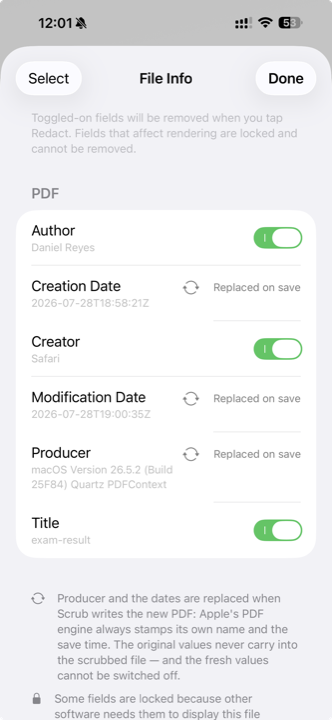
The name on that Author line is a stand-in. The file really carried the account holder's own name, swapped out before publishing this. Everything else is exactly as the print window left it.
That list isn't drawn on the page anywhere. It rides along inside the file.
Where the name comes from
It isn't your Apple Account and it isn't the short login name you type your password against. It's the full name on your Mac user account: the one you typed when you first set the machine up, and the one you'd see if you opened Users & Groups in System Settings.
macOS doesn't ask, doesn't show you the field while you're saving, and offers no setting to stop it.
Why a name in a hidden field matters
Because you can't see it, there's nothing to remind you it's there. Renaming the file doesn't touch it, because the name lives inside the document rather than in the filename. And it goes wherever the file goes: an email attachment, a shared folder, a support ticket, an upload box on a website, a chat with an AI assistant. Anything that opens the file can read those properties.
An upload reads the file, not a picture of the page. The hidden fields go up with everything else, which is the part people miss after carefully cleaning the visible content first.
What doesn't do this
"Macs leak your name" would be too broad a claim:
- Chrome and Firefox draw their own print windows rather than the Mac one, and the files they save didn't carry a name.
- iPhone and iPad don't do it. The same page saved to PDF on an iPhone came out with no author at all.
- Menu commands like Export as PDF write the file a different way, and the ones we tested didn't add a name either.
The behavior belongs to the Mac print window specifically, on the PDF › Save as PDF… route described at the top. If you want to know what a particular app on your Mac does, the Preview check above takes ten seconds.
A note for Windows
Windows does something similar. PDFs made with Microsoft Print to PDF carry the Windows account name in that same Author field. We found examples from two different people, one printed from a browser and one from Word, so it isn't tied to any single app. What leaks differs slightly: macOS writes your full name, while Windows writes your account name, which is often just a first name or a shortened form of your email address. There's a second catch on Windows too. The title field keeps the original filename, so renaming the PDF before you send it doesn't hide what the source document was called.
Getting it out
Look again at the switches in that first screenshot. Every field that's pure identity data gets one, and the ones left on are destroyed when you save or share the file, along with whatever you've blacked out on the page itself.
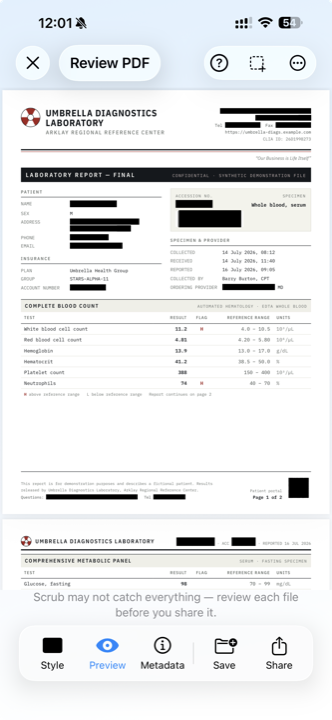
Here's the File Info screen again, this time on the scrubbed copy opened back up in Scrub, so it shows what actually got written to disk:
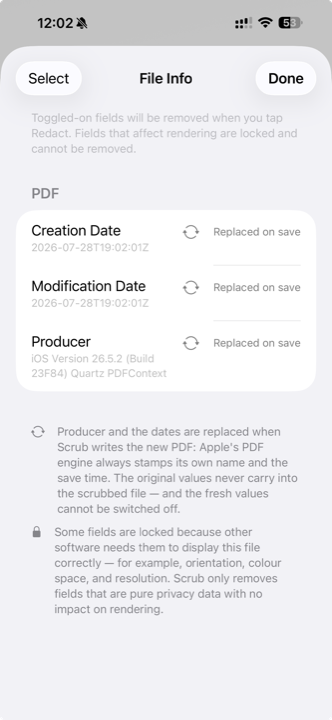
The saved file no longer contains Author, Creator or Title at all. The Producer line and two dates remain, and they belong there. Every PDF records which software wrote it and when, so when Scrub saves your redacted file, Apple's PDF engine stamps its own generic label and the save time into the new copy. Nothing carries over from the original, which is why Scrub marks those three as "Replaced on save" instead of offering a switch it couldn't honor. There's a fuller answer in the FAQ.
Scrub runs entirely on your iPhone, which matters more here than it might sound. Sending a private file to an online metadata cleaner, so that you can then send it to an AI tool, just adds another server to the list. Nothing you scrub leaves the phone.
Scrub it before you share it
On-device redaction for images and PDFs. There are no servers and no account, and your files never leave your iPhone.